
What CRM ERP integration is (and the decision most guides skip)
CRM ERP integration connects the system your sales team lives in (HubSpot, Salesforce) to the one finance and operations run on (NetSuite, SAP), so customers, orders, and invoices mean the same thing in both, what IBM calls a single source of truth. There are four ways to do it. Which one you pick matters less than a decision most guides skip: which system owns which record.
This is for RevOps and IT people about to connect the two, or cleaning up a connection that already misbehaves. You’ll get an ownership table, a side-by-side of the four approaches, a decision table, and the five places these syncs break.
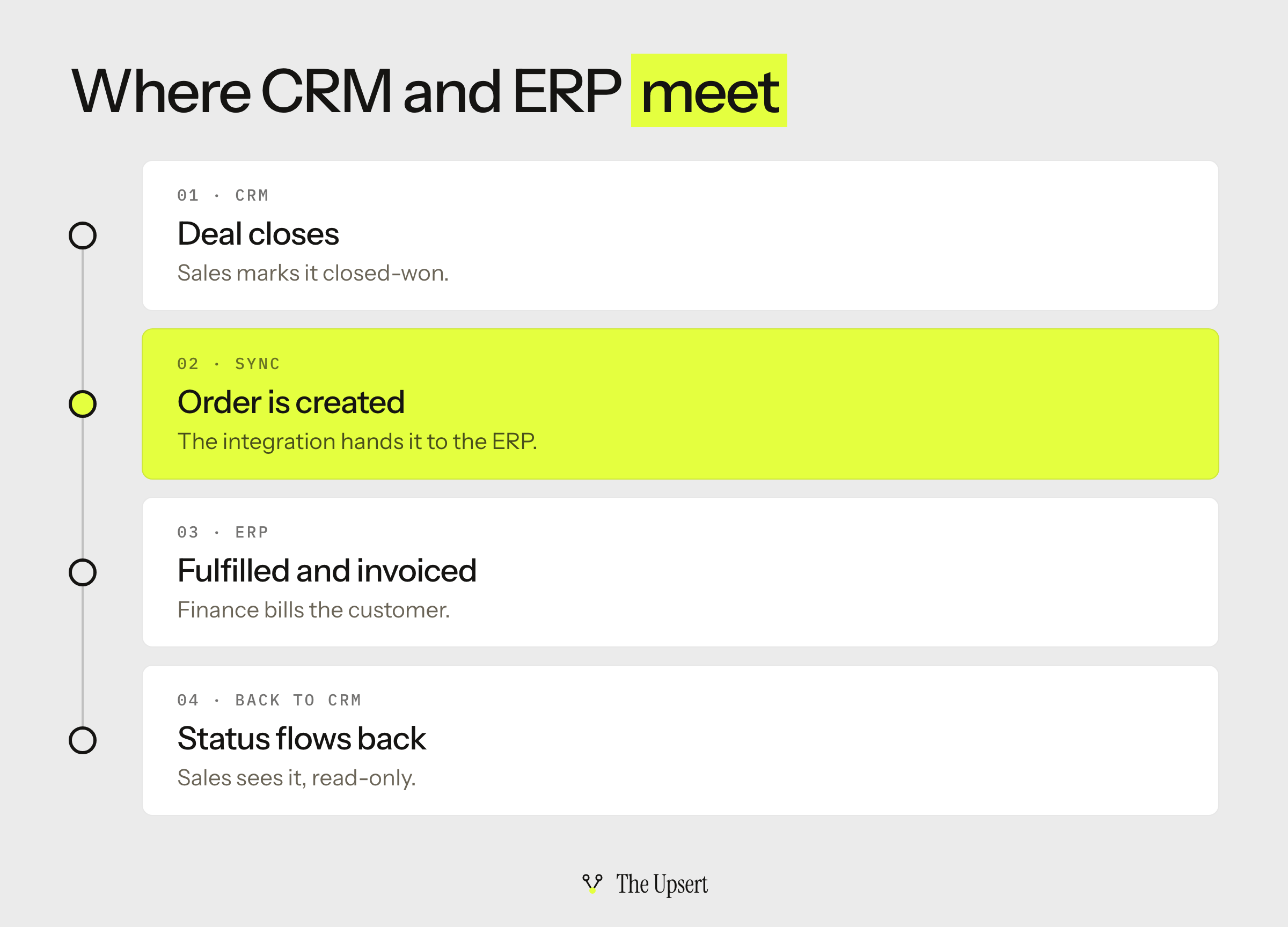
CRM vs ERP: the one-minute version
A CRM tracks the relationship: leads, deals, contacts, and the history of every conversation. An ERP runs the business: finance, inventory, purchasing, billing, and fulfillment.
Salesforce and HubSpot are CRMs. NetSuite and SAP are ERPs that also sell CRM modules, which is where most of the confusion comes from. The two systems overlap on exactly one thing, the customer, and that overlap is why you need an integration at all: a deal closes in one system and gets billed in the other.
Decide who owns each record before you pick a tool
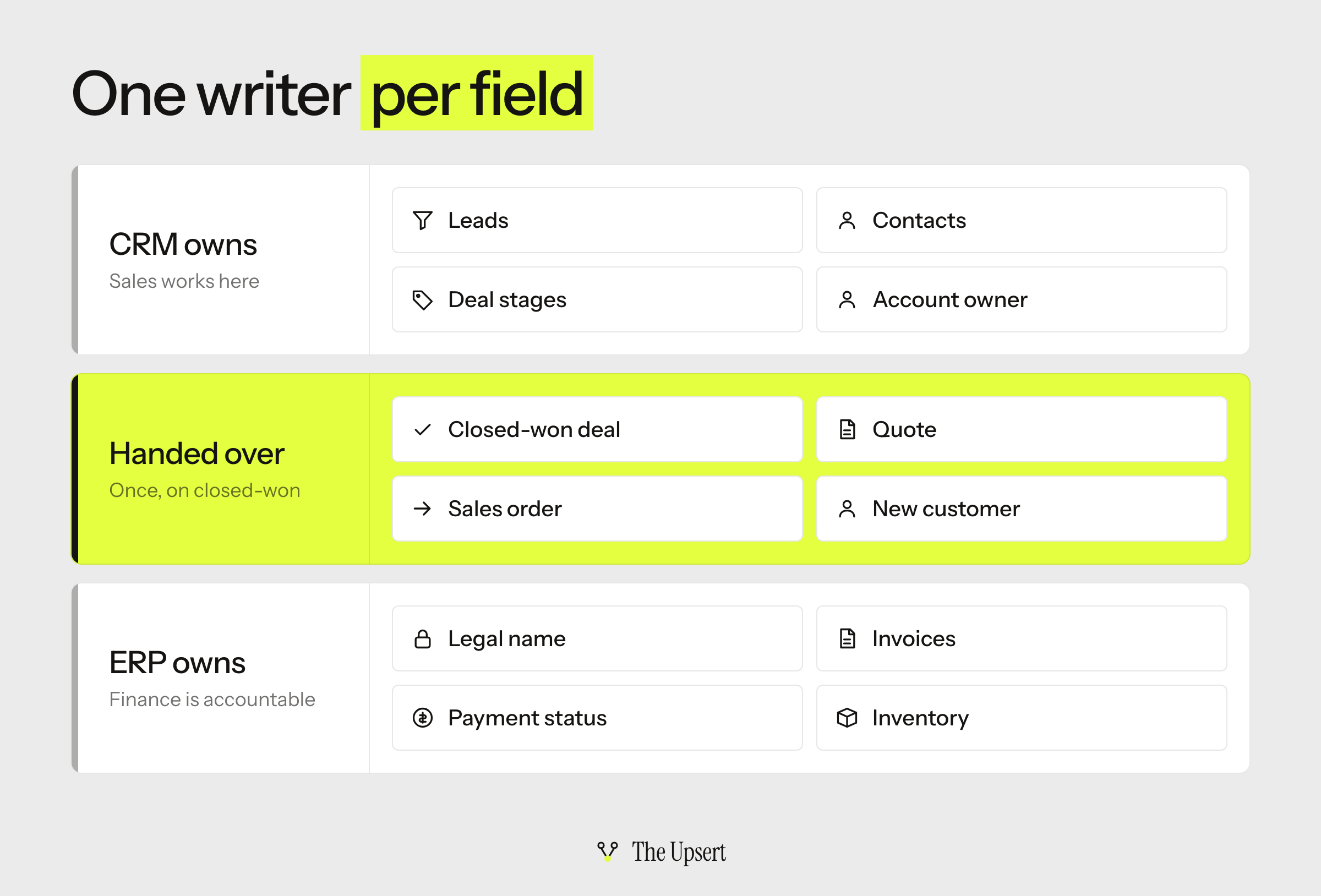
Most broken syncs start the same way. Two systems are both allowed to edit the same field, so every sync run overwrites someone’s change. The fix is a rule, not a product: one writer per field. The other system holds a read-only copy.
Here is the ownership split that works for most CRM–ERP setups. Treat it as a starting point and adjust for your business.
| Record | Owner | Flow | Why |
|---|---|---|---|
| Leads, contacts, deal stages | CRM | Stays in the CRM | Sales works here every day, and finance rarely needs it |
| Account owner, segment, lifecycle stage | CRM | CRM → ERP (optional) | These are sales attributes |
| Legal name, billing address, tax ID, payment terms | ERP, once the customer exists | ERP → CRM | Finance is accountable for these being right |
| Products and price lists | ERP | ERP → CRM | Quotes should match what finance can actually invoice |
| Quotes and opportunities | CRM | CRM → ERP on closed-won | The deal starts in sales |
| Sales orders | CRM creates, ERP owns after | CRM → ERP once | After creation, fulfillment and billing change it |
| Invoices and payment status | ERP | ERP → CRM, read-only | Sales needs to see it, not edit it |
| Inventory availability | ERP | ERP → CRM, read-only | Only the ERP knows the real stock |
| Credit limit and credit hold | ERP | ERP → CRM, read-only | Finance decides, sales needs the warning |
The fight is almost always about the customer’s name and billing address. Pick one owner, then make the field read-only in the other system so nobody can win an argument by editing it.
I’ve watched this exact fight play out on a RevOps team. Sales reps corrected customer names in the CRM to match what the customer actually calls itself, while finance corrected the same names in the ERP to match the legal paperwork. Every sync run overwrote one side with the other, so the name flipped back and forth for weeks and invoices went out under two versions of the same customer. Nobody could say which was right, because both systems had been declared the source of truth. The fix needed no new tooling: finance owned the legal name, the CRM copy became read-only, and the argument ended.
The four ways to connect a CRM to an ERP
Every CRM–ERP architecture falls into one of four patterns. This is the side-by-side; the sections after it explain each one.
| Approach | Best for | Setup effort | Breaks when | Who maintains it |
|---|---|---|---|---|
| Native connector | Standard objects, one CRM and one ERP | Low | You need custom objects, custom field logic, or a third system | Vendor, plus whoever configures it |
| iPaaS | Custom fields, several systems, no dev team | Medium | Logic gets complex enough to need real code | An ops or integration owner |
| Custom API integration | Unusual logic or high volume, with engineers available | High | The person who wrote it leaves, or an API changes | Your engineers |
| Warehouse + reverse ETL | Showing ERP data in the CRM for reporting and enrichment | Medium | You use it for order writes that need instant confirmation | The data team |
Native connectors: fastest, until you need something they don’t do
A native connector is a prebuilt link published by a vendor or a partner. HubSpot has its own NetSuite integration that maps deals to opportunities and orders to sales orders, and lets you choose a one-way or two-way sync. NetSuite publishes a Salesforce connector of its own, and the Salesforce NetSuite integration guide shows what it syncs and where it stops. If your pair is HubSpot and NetSuite, the HubSpot NetSuite integration guide goes through what that native sync documents and what its docs leave out.
They work well when you use standard objects and standard flows. Before you buy or install one, ask four questions:
- Do custom fields sync, and can you map them yourself?
- Is the sync one-way or two-way?
- What happens when a record fails: does anyone find out?
- Can you change the mapping without a support ticket?
If the answers are “no, one-way, no, and no”, you’ll outgrow it in a quarter.
iPaaS: the usual answer when you have custom fields and no engineers
An integration platform as a service (Celigo, Boomi, Workato, MuleSoft, and Jitterbit are the names you’ll meet most) gives you prebuilt templates, visual field mapping, and error handling in one place. It also connects more than two systems, which matters the moment billing or support joins the picture. If your ERP is NetSuite, the NetSuite Integration Platform vs iPaaS guide compares Oracle’s own platform with a general-purpose iPaaS.
The cost to model carefully is the pricing. Ask how usage is billed (by volume, by connection, or flat) and price it at your real record counts, not the demo’s.
My default for a mid-sized team with custom fields and no dedicated engineers is to start here.
Custom API integration: total control, total ownership
Both Salesforce and NetSuite expose APIs, so you can write the sync yourself: mapping, retries, ordering, monitoring, all of it. That’s worth it when your logic is unusual (complex pricing, approvals, multi-subsidiary rules) or your volume makes per-record pricing painful.
The real cost isn’t the build. It’s that someone has to own it after the developer moves on. If you go this way, write down how it works and put alerting on it from day one.
Warehouse plus reverse ETL: right for reporting, wrong for orders
Here data flows from the ERP into a data warehouse and then back out into the CRM. It’s a good fit for showing invoice history, lifetime value, or product usage on a CRM account page.
It runs in batches and it’s built to push data one way into the CRM. That makes it a poor choice for creating sales orders in the ERP, where you need an immediate yes or no.
How to choose: match the approach to your situation
Match the row that sounds most like your team.
| Your situation | Start with | Why |
|---|---|---|
| Standard objects, one CRM, one ERP, small team | Native connector | The least to build and maintain |
| Custom fields or custom objects, no developers | iPaaS | Visual mapping without writing code |
| More than two systems (CRM, ERP, billing, support) | iPaaS | One place to manage every flow |
| Complex pricing or approval logic, or very high volume, with engineers available | Custom API | Full control over logic and retries |
| You mostly need ERP data (invoices, lifetime value) visible in the CRM | Warehouse + reverse ETL | Batch is fine and the flow is one-way |
| You’re not sure yet | Native connector or iPaaS, in a sandbox | Cheapest to test and cheapest to leave |
Whatever you pick, prove it in a sandbox with your 50 messiest real records first. Clean demo data hides every problem in the next section.
Where CRM–ERP syncs break, and how to prevent it
These five show up whichever approach you choose.
Duplicates from a weak matching key
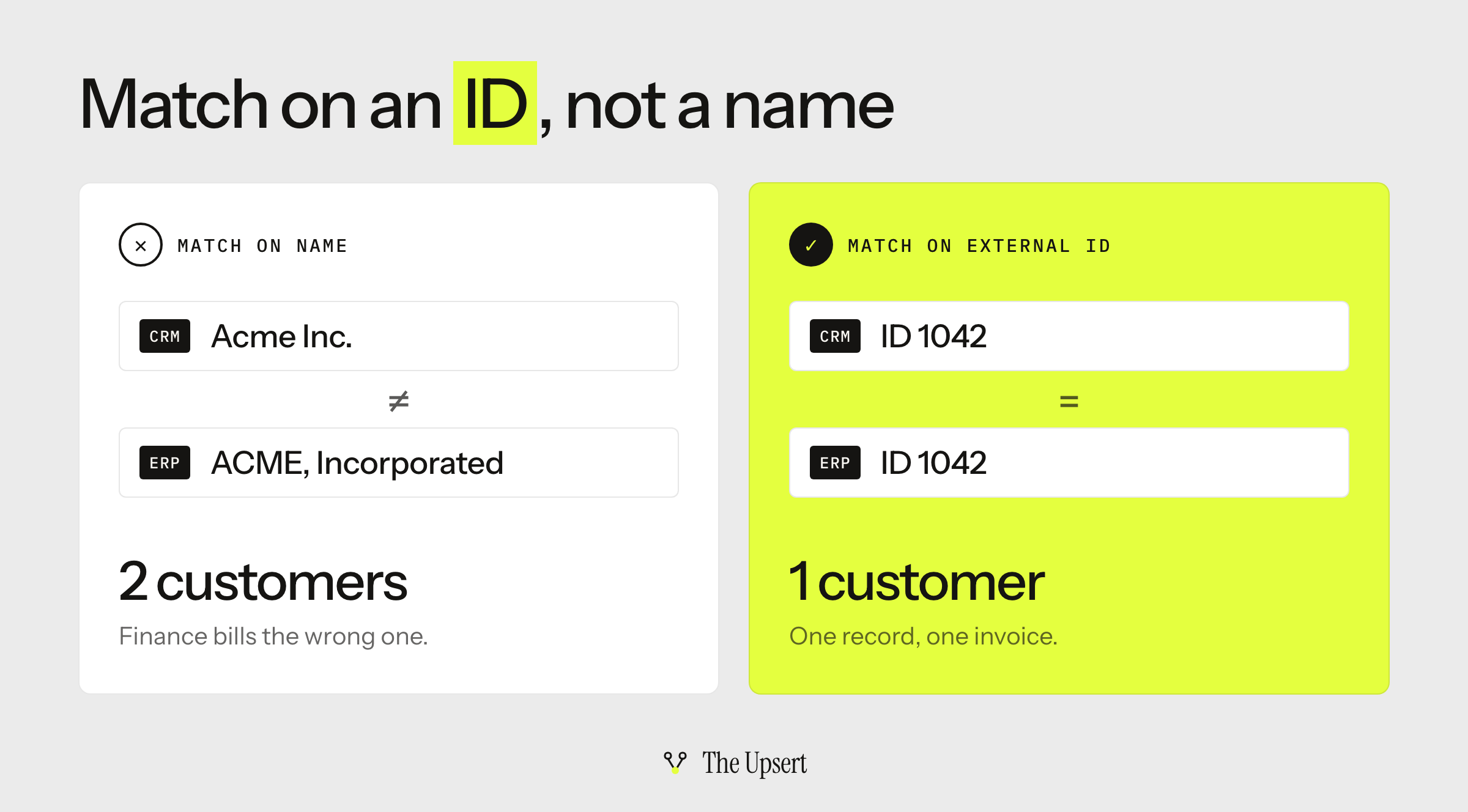
If the sync matches customers on name or email, “Acme Inc.” and “ACME, Incorporated” become two customers, and finance bills the wrong one.
The fix is to store the CRM’s record ID on the ERP record (or the reverse) as an external ID, and match on that every time. Salesforce lets you create or update a record by external ID, and if that ID matches more than one record it returns an error and changes nothing. NetSuite identifies a record by its external ID and record type, so the same key works there. That create-or-update pattern is what developers call an upsert.
// Pseudocode: match on a stable external ID, never on name or email.
const existing = await erp.customers.findByExternalId(crmAccount.id);

if (existing) {
  await erp.customers.update(existing.id, mapFields(crmAccount));
} else {
  await erp.customers.create({ ...mapFields(crmAccount), externalId: crmAccount.id });
}
Order of operations
A sales order can’t exist before its customer and its items do. If the sync sends the order first, it fails, and often quietly. Build the sequence explicitly: customer, then items and prices, then the order, then invoice status back to the CRM. Anything that depends on another record waits in a queue until its parent exists.
Field types that don’t match
Picklists in the CRM, free text in the ERP. Multi-currency deals landing in a single-currency subsidiary. Tax fields with no CRM equivalent. Map values explicitly, decide the default for anything unmapped, and make unknown values fail loudly instead of guessing.
Rate limits and batch windows
Every API caps how many requests you can make: Salesforce limits calls per rolling 24 hours, and HubSpot enforces both daily and short-burst limits. A bulk import into the CRM can use up the budget and starve the sync. Batch your writes, back off when you’re told to, and run heavy loads outside business hours.
Silent failures
The scariest failure is the sync that reports success while a record goes missing. Three things catch it: an error queue where failed records wait to be retried, an alert that reaches a person who will read it, and a weekly count check. Compare closed-won deals in the CRM against sales orders created in the ERP for the same period. If the numbers differ, you have a problem before finance does.
Before you go live: a checklist
- Every field has one owner, and the other system’s copy is read-only.
- Records match on an external ID, not name or email.
- The sync order is defined: customer, items, order, invoice status.
- Every picklist and currency value is mapped, with a defined default.
- Failed records land in a queue and someone is alerted.
- A weekly count check compares deals to sales orders.
- You tested with your 50 messiest real records in a sandbox.
- Someone specific owns the integration after launch, and it’s written down.
Start with the ownership table
Copy the table near the top into a spreadsheet, fill in your real fields, and highlight every field that two systems can edit. That list is your integration project. For HubSpot and NetSuite, see how to connect HubSpot to NetSuite step by step.
Frequently asked questions
Can a CRM be integrated with an ERP?
Yes. There are four common ways: a native connector, an iPaaS, a custom API integration, or a warehouse with reverse ETL. The usual flows are a closed-won deal becoming a sales order in the ERP, and invoice and payment status flowing back to the CRM.
What is CRM in ERP?
It means one of two things. Some ERPs, including NetSuite and SAP, ship a built-in CRM module, so customer data lives in the same system as finance. Or it means a separate CRM that’s connected to the ERP. Teams often keep a dedicated CRM for sales workflows even when the ERP has one built in.
Is Salesforce a CRM or an ERP?
Salesforce is a CRM platform. It isn’t an ERP: finance, inventory, and billing usually stay in a system like NetSuite or SAP, and Salesforce connects to it.
Is NetSuite a CRM or an ERP?
NetSuite is an ERP. It also includes CRM functionality, so some companies use it for both. Many others pair it with a separate CRM such as Salesforce or HubSpot.
Is SAP an ERP or a CRM?
SAP is best known as an ERP vendor. It also sells CRM and customer experience products.
Should a CRM–ERP sync be real-time or scheduled?
Use real-time (event-driven) sync for anything a person is waiting on, like creating an order or checking a credit hold. Use scheduled batches for reference data that changes slowly, like price lists and inventory snapshots. Running everything in real time adds cost and failure points you don’t need.